
Design in Canva, run on TV
Vibe is now a publish destination in Canva, and the first CTV destination in Canva's publish menu. Design a video ad in Canva, publish it straight into your Vibe creative library, and attach it to a streaming TV campaign without downloading, renaming, or re-uploading a single file.
The biggest blocker to launching CTV is the creative. That single barrier keeps advertisers who already run social and search off the biggest screen in the house. Creating a good ad used to involve a lot of resources, and performance marketers are focused on prioritizing strategy, rather than creative production. Now that Vibe lives in Canva's publish menu, marketers can leverage the same design surface they’re already using - and get their ads on television.
Canva for Vibe is live today for every Vibe advertiser, at no extra cost. It's the second partner in the creative management category we opened in July with Segwise.
Why we built this
Creative production shouldn't be the reason a team stays off TV.
Producing video takes time, money, and people. For most marketing teams, the budget for CTV exists and the audience is clearly there. What's missing is the production capacity to turn out TV-ready spots on a regular cadence. And performance marketers would rather spend their hours on audiences, testing, and measurement than on exporting files and chasing specs.
So we're working through creative production from several angles at once. In July, Segwise gave you a way to turn brand footage into CTV variations at scale. The Canva integration turns the design surface your team already uses, into TV ready ads. The creatives land in your Vibe creative library, ready to attach to a campaign.
The goal is simple. Whoever makes the creative should be able to get it onto TV without a production detour.
From Canva to your Vibe creative library
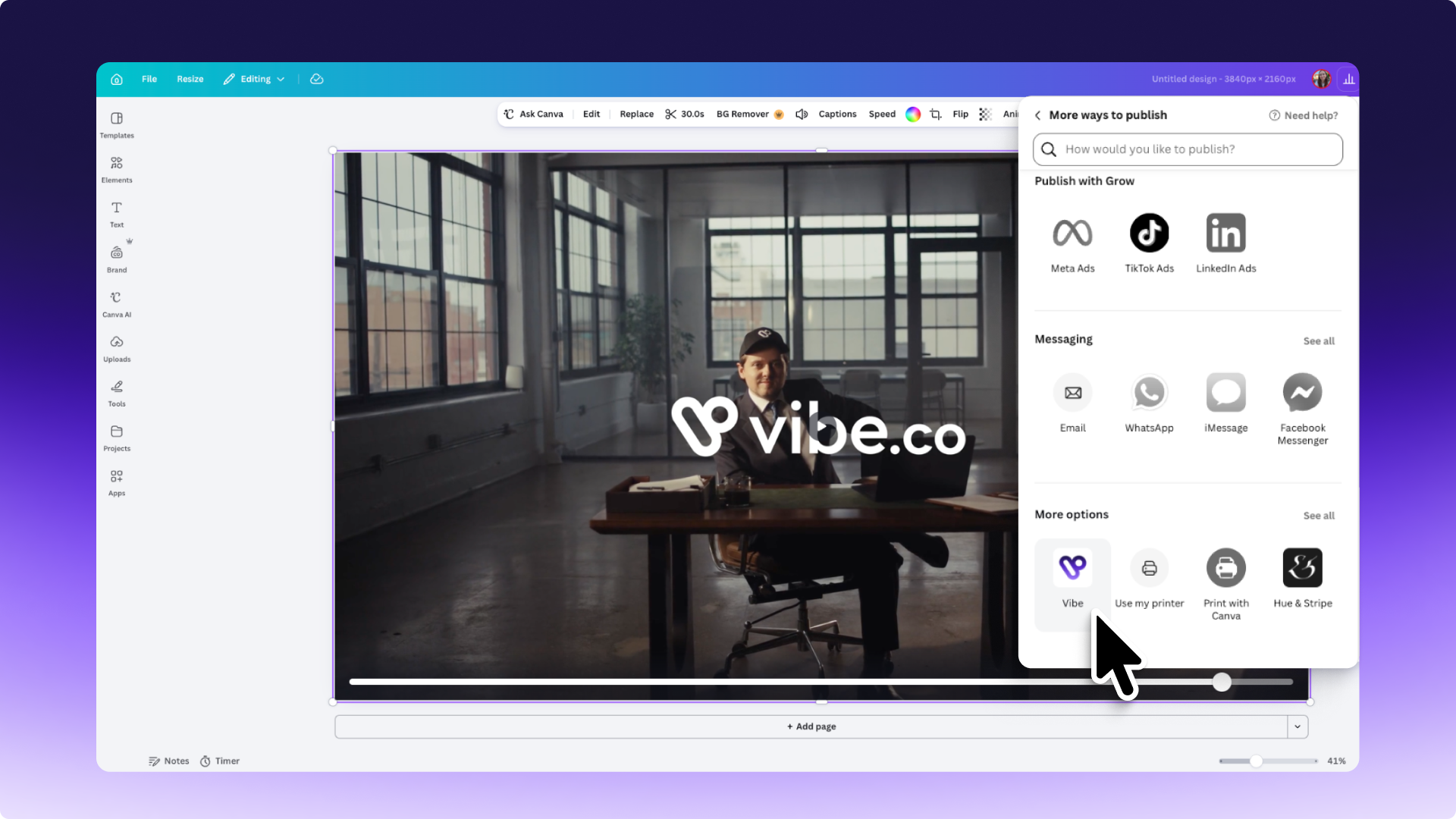
Vibe appears in Canva's publish menu as a native Canva app, in the same list as your social and ad destinations.
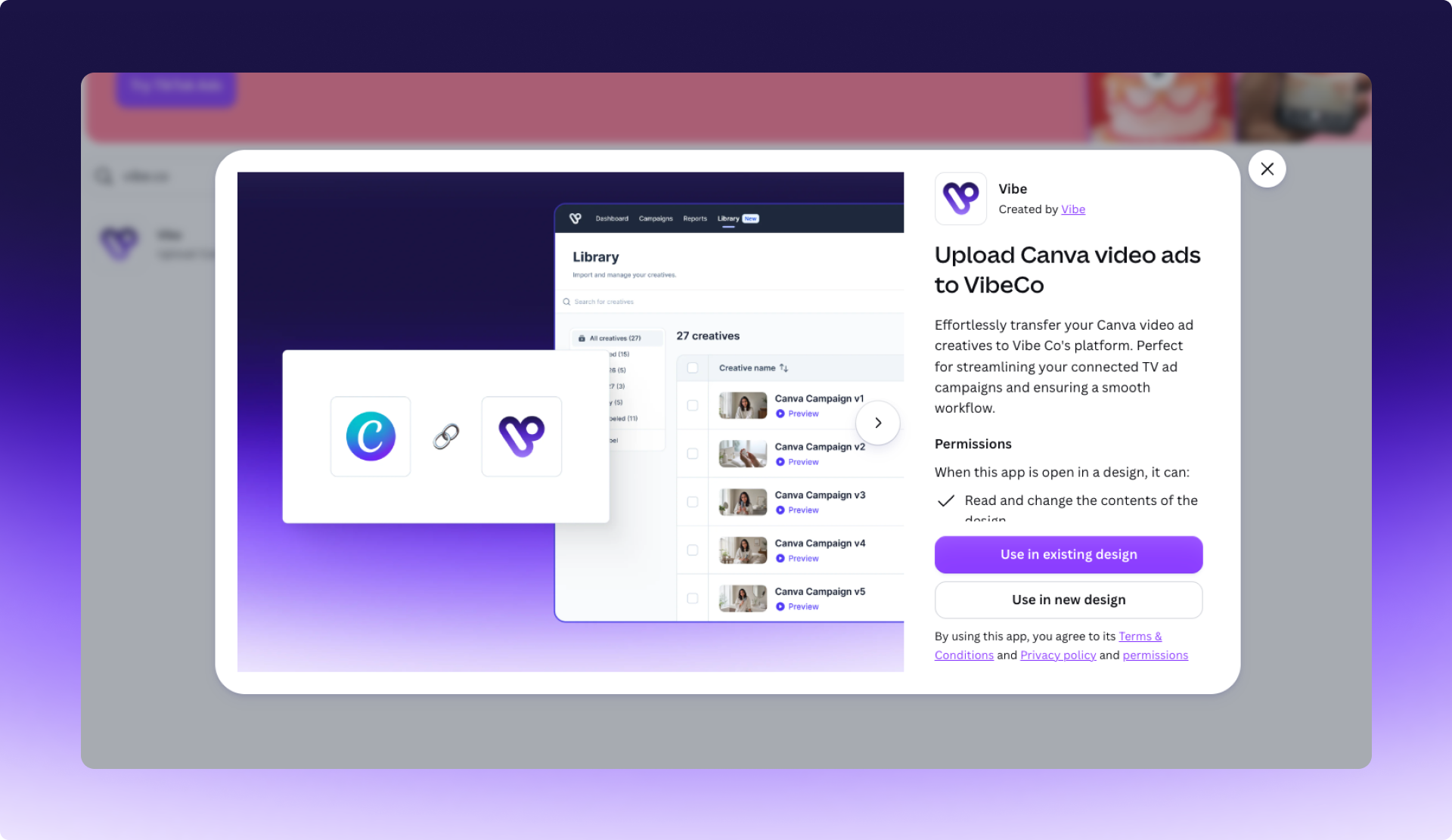
The first time you publish, Canva asks you to connect your Vibe account and pick which advertiser account should receive the creative. That authorization happens once. After that, Publish to Vibe behaves like every other destination in the menu.
On the Vibe side, the creative lands in your library alongside your other assets. You attach it to a campaign exactly as you would a file uploaded manually, and it shows up with the same metadata, the same preview, and the same controls.
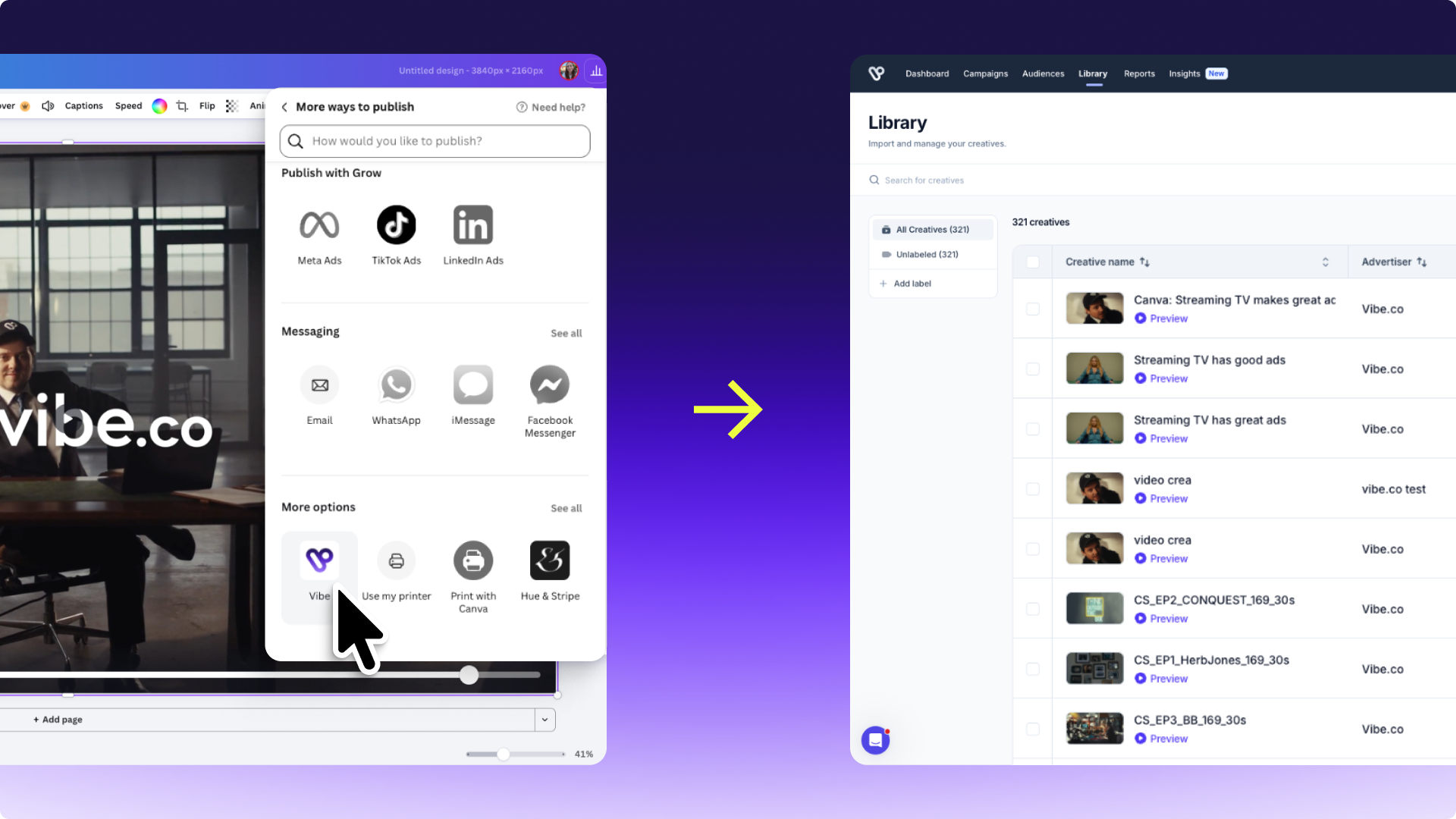
This changes who can move work forward. Your brand designer, your social lead, and your agency partner can all publish finished spots into the advertiser account they've been given access to. Your media buyer no longer has to collect files from Slack threads and email attachments before a campaign can launch. The library becomes the handoff point, and the handoff takes seconds.
For teams running several brands or regions, the advertiser account picker keeps things clean. Each design goes to the account it belongs to, so a spot for one brand doesn't end up in another brand's library.
Specs enforced before your export
Vibe's specs are MP4, 16:9, 5 to 90 seconds, and 1280x720 minimum. Those requirements now run inside Canva, before anything is exported. A design that comes in at 4 seconds, or falls under the resolution floor, gets caught while you're still in the Canva editor.
Moderation runs automatically
Creative that runs on premium inventory has to meet that inventory's standards. Everything published from Canva into Vibe runs the same moderation pipeline as everything else. Automatic scan on upload, channel-level inventory rules (Disney and HBO Max hold different standards than the long tail), and human review when something is flagged.
So the speed doesn't cost you placement. A creative designed in Canva is eligible for the same inventory across Vibe's certified supply as one that came out of an agency.
What to run first
Don't start from a blank canvas. Open the best-performing vertical video you ran last quarter, resize it to 16:9 in Canva, trim it to 15 seconds, and publish it to Vibe.
From there, Vibe's targeting does the part it's built for: audience, device, and daypart across Vibe’s premium inventory. Once that first spot is live, you have a baseline, and every new Canva design becomes another variation to test against it.
Getting started
Open a video design in Canva, go to the share menu, select Vibe, authorize the connection, choose the advertiser account, and publish. Then open your Vibe creative library and attach the creative to a campaign.
If you don't have a Vibe account yet, you can create one and connect it in the same sitting.
More on building with Vibe:
- Introducing Segwise for Vibe, the first partner in the creative management category
- Vibe for Developers, the open API that powers Vibe's partner integrations
Connect Canva to Vibe and launch your first CTV ad.
Introducing Omnisend for Vibe
Introducing Omnisend for Vibe
Sync Omnisend segments to Vibe and run them as Streaming TV audiences.
Introducing Vibe CLI
Run CTV campaigns from your terminal or coding agent with Vibe CLI. Query performance, launch campaigns, and script the repetitive work. Live now.
Introducing Stella for Vibe
Vibe now connects to Stella, so performance marketers can measure CTV with causal proof, not guesswork.
Introducing L2 for Vibe
Send custom voter and consumer audiences from L2 straight into Vibe and run them on connected TV - no exports, no manual handoff.
How Vibe’s Growth Team Launched 250 Personalized Campaigns in less than 15 Minutes
See how Vibe's growth team used Vibe's API to launch 250 personalized CTV campaigns in under 15 minutes - and what it means for scaling ad ops.

Get started with Vibe
in minutes.


Industries
© 2026 Vibe, Inc.