
CTV just stopped being a separate tab. Introducing the Vibe MCP.
Your team is already running faster with AI. You use it to write copy, analyze numbers, plan strategy, and draft briefs. CTV shouldn’t be a separate tab.
That changes today.
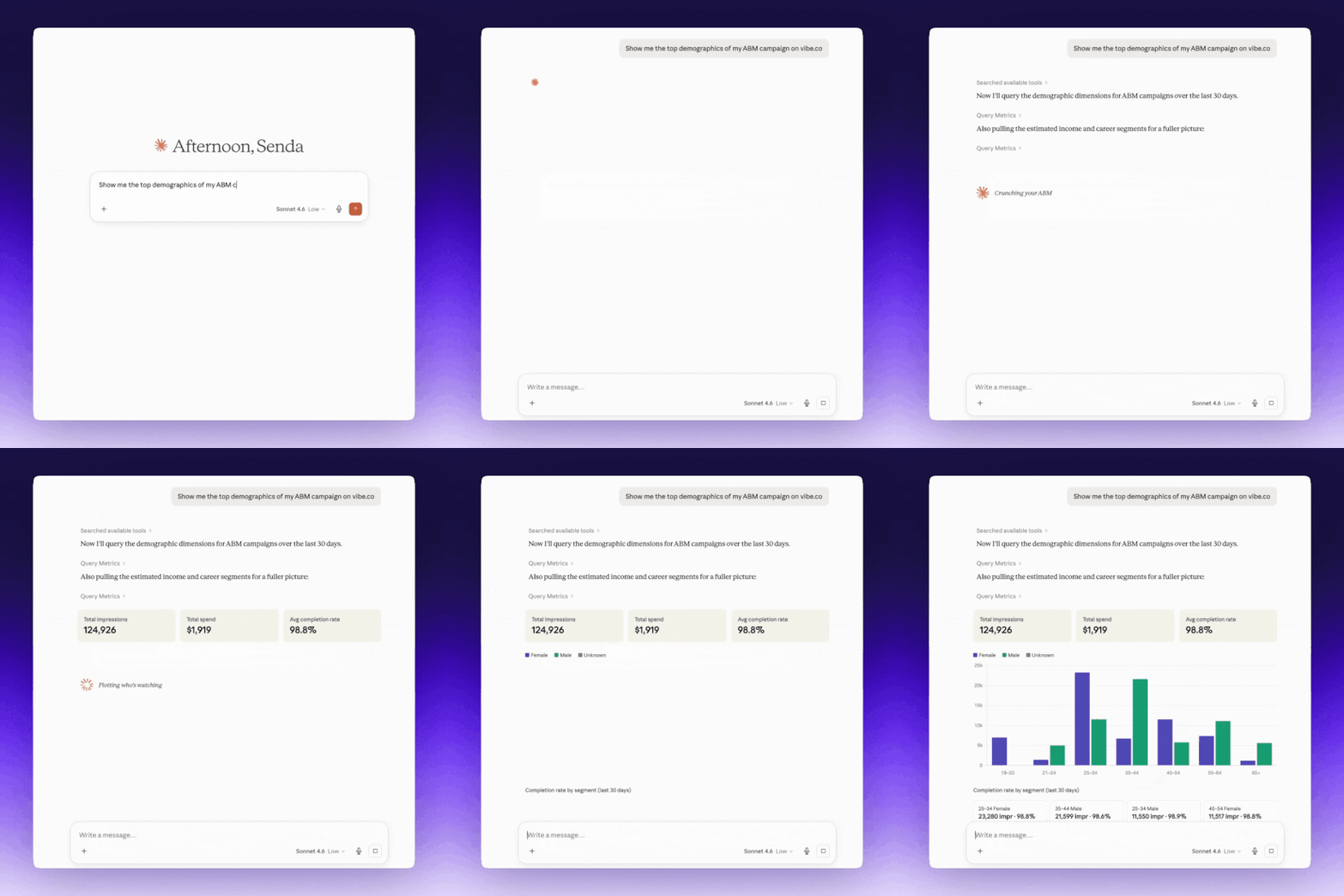
Vibe is now live in Claude, ChatGPT and Gemini as a native integration, through the Model Context Protocol (MCP). It's the first time any CTV platform has been available inside an AI assistant. You can query your campaign performance, launch campaigns, explore TV inventory, and manage audiences without switching tools.
Your CTV campaigns are now part of the same AI-native workflow as the rest of your marketing.
What does the Vibe MCP do?
The Model Context Protocol is an open standard that lets AI assistants connect directly to external tools and data. Connect the Vibe MCP, and your AI assistant gains full access to your Vibe account: campaigns, strategies, creatives, audiences, metrics, and available TV inventory.
You talk to it the same way you talk to your LLMs for everything else.
Things you can do with the Vibe MCP
Query your performance
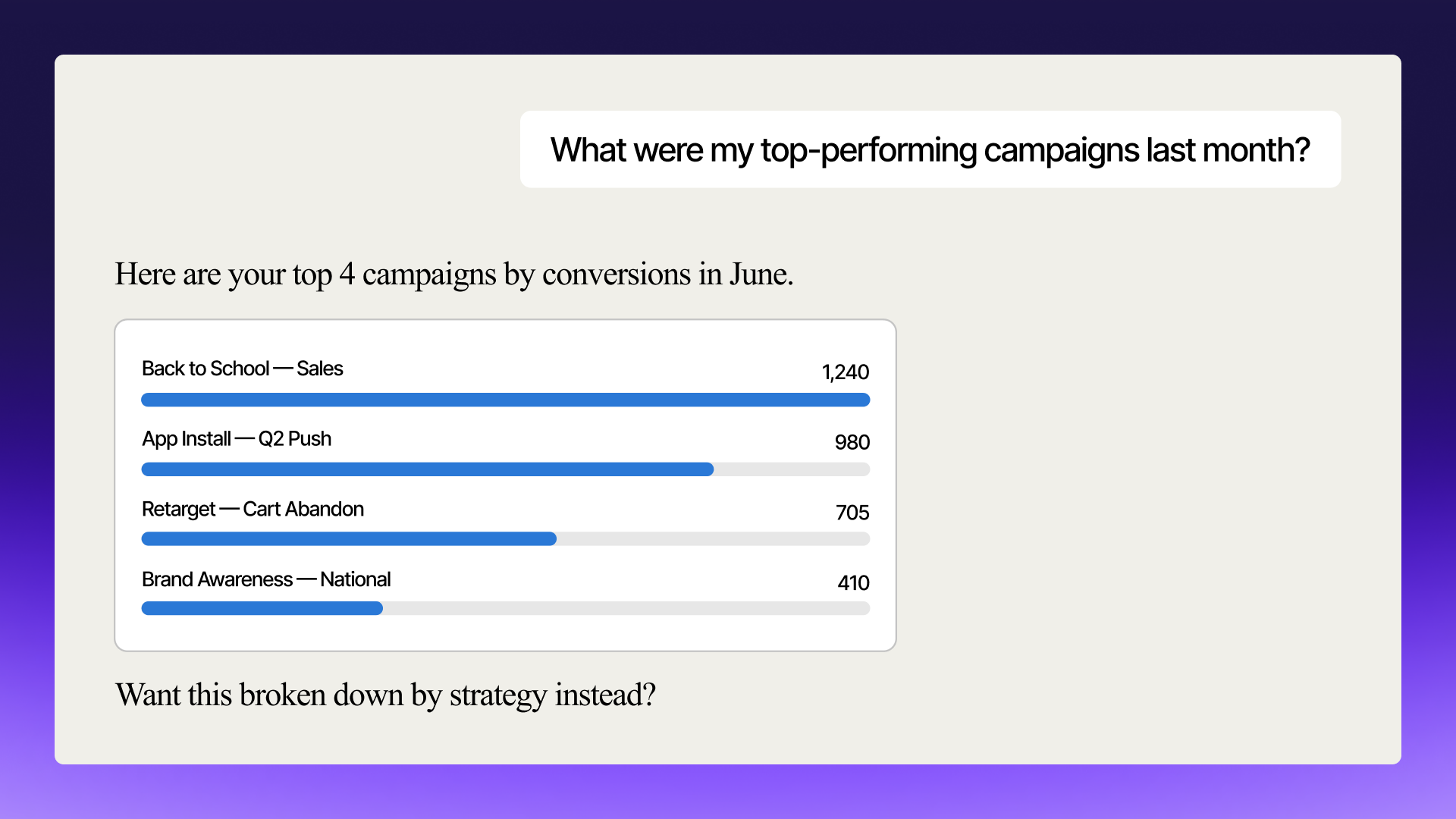
Ask your AI assistant what your top-performing campaigns were last month. Ask which strategy drove the lowest CPA. Ask how your streaming TV spend is pacing against your budget. You get the answer immediately, without opening a dashboard, building a report, or writing a query.
For teams that review campaign performance inside their AI workspace, this means CTV data lives alongside everything else.
Launch and manage campaigns through conversation
Create a campaign by describing it. Set your targeting, define your budget, configure your strategy, and publish, all through a conversation. The MCP handles the mechanics.
This is useful for teams that iterate fast. Describe a test, launch it, pull the results, adjust. No context switching required.
Explore TV inventory before you commit
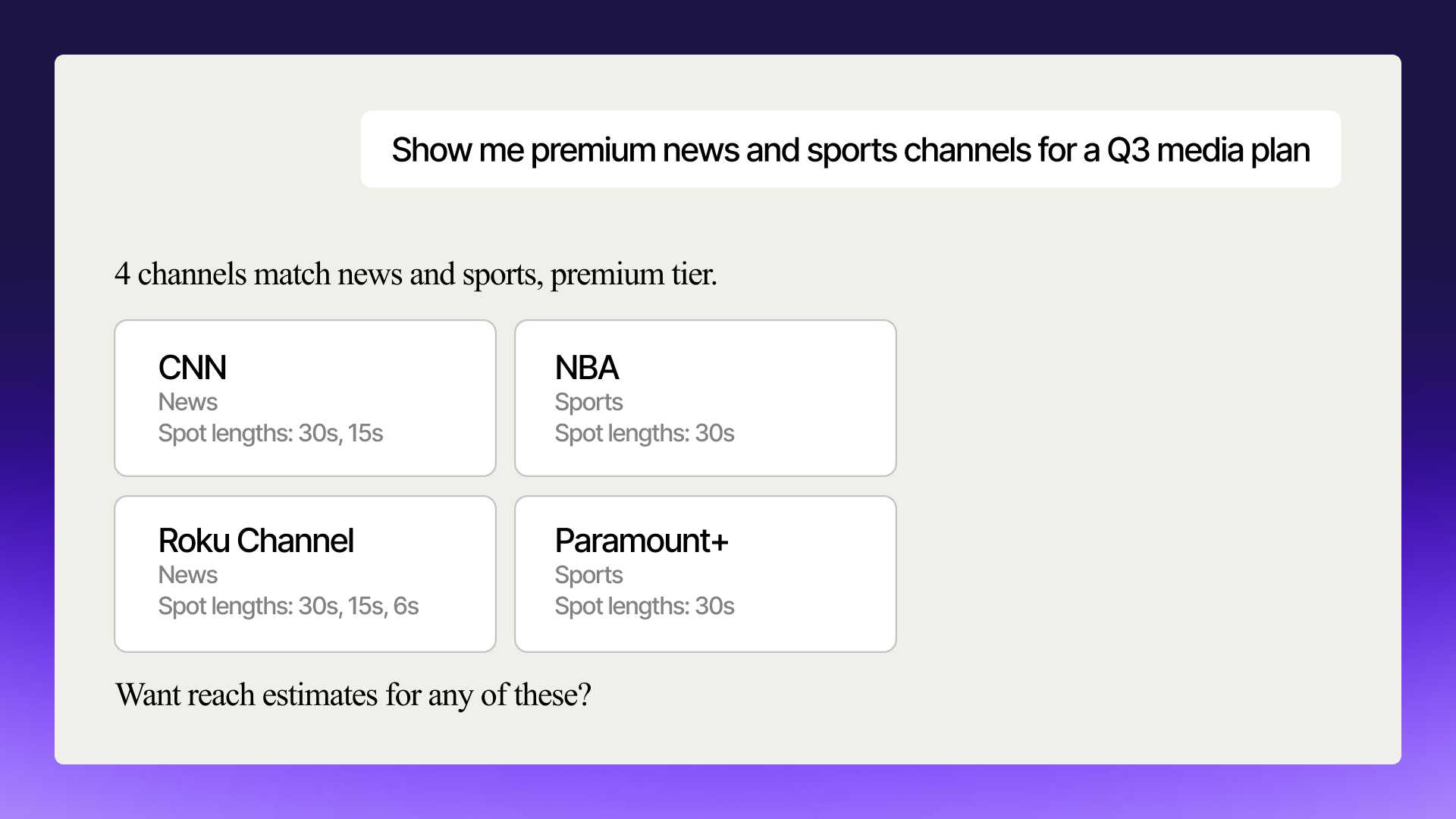
Search available streaming TV inventory by channel, format, or audience composition. Browse the full inventory of premium channels before deciding where to run. If you're planning a media mix or scoping a new campaign, you have the full picture inside your AI workspace.
Manage your audiences in context
Browse your CRM audiences and custom web traffic audiences. See which audience lists are active and ready to target. When you're planning a retargeting push or refreshing a suppression list, that data is accessible without opening a separate tool.
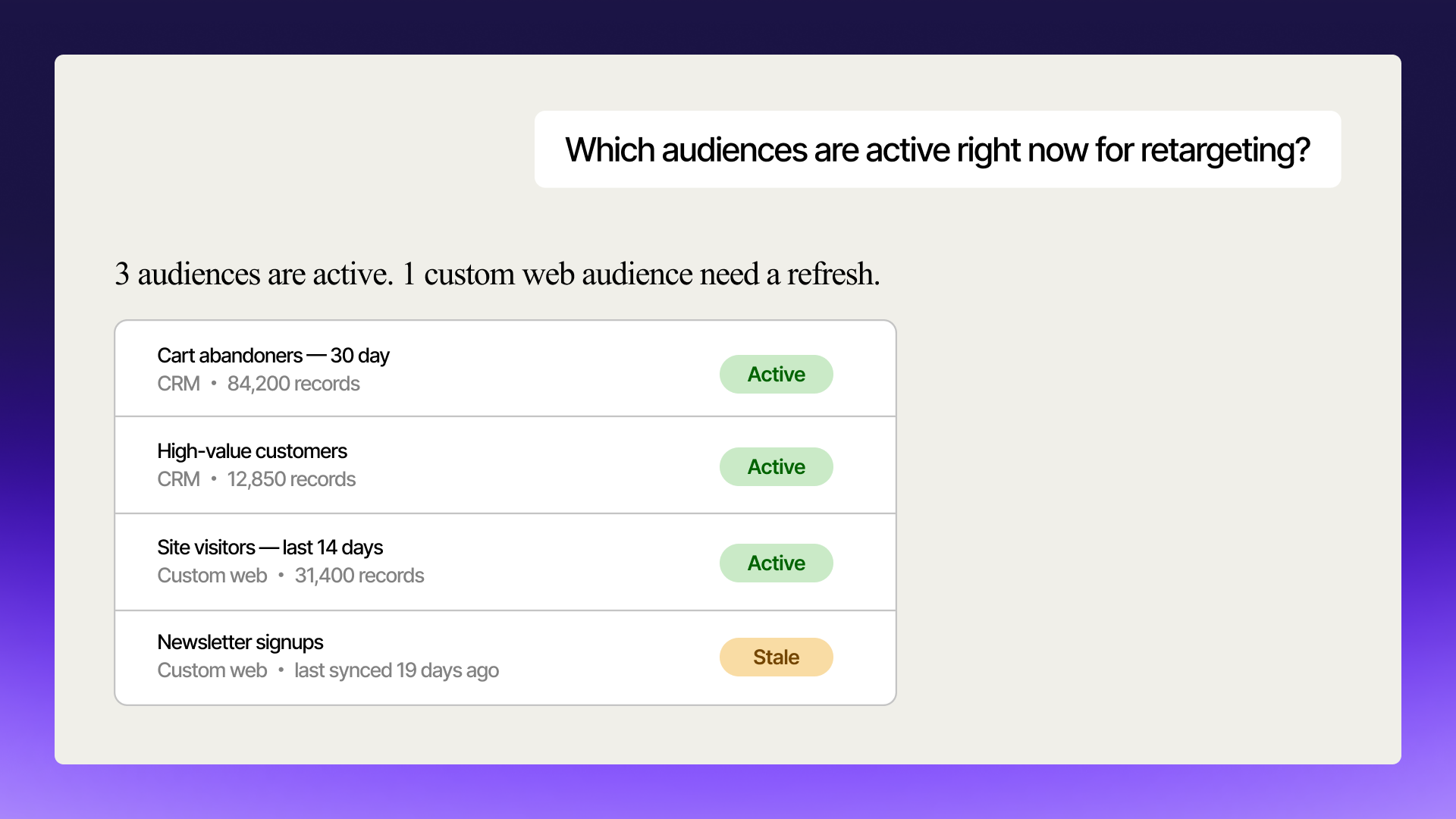
Pull any campaign detail on demand
Get strategy details, creative specs, budget pacing, and performance history for any active campaign. Useful when you're preparing a client report, answering a question mid-call, or making a fast decision on a live campaign.
Why it matters now
AI-native workflows are not a future state for performance marketing teams. They're the current state. The teams pushing on growth are already working inside Claude, ChatGPT and Gemini for significant parts of their day.
Until now, CTV sat outside that workflow. You had to exit to check performance, exit to make a change, exit to explore options. Time spent moving between systems adds up, especially when a live campaign needs a fast decision.
The Vibe MCP fixes this inefficiency CTV is now inside the same workspace where you write, plan, analyze, and decide. That's the shift.
For enterprise teams running CTV at scale, this isn't limited to a chat window. The Vibe Developer Platform and the MCP both connect to the same campaign data, so any tool your team uses, not just the one you're chatting with, can access it too. A reporting tool can pull live performance numbers. A planning agent can check inventory before a media plan goes out.
How to connect the Vibe MCP to your LLM
Claude and ChatGPT connect directly, in about a minute. Gemini connects too, but through Gemini Enterprise, set up by your Google Cloud admin.
Claude:
- Pro and Max plans: Settings → Connectors → Add custom connector → enter
https://api.vibe.co/mcp. You'll be prompted to sign in to Vibe. - Team and Enterprise plans: An admin needs to add the connector at the org level first (Organization settings → Connectors → Add → Custom → Web → enter
https://api.vibe.co/mcp). Once added, each user connects individually under Customize → Connectors.
ChatGPT: Go to Settings → Apps → Advanced Settings and turn on Developer Mode. Select Create, enter the Vibe MCP endpoint (https://api.vibe.co/mcp), and click Scan Tools to connect your account. Workspace admins on Business/Enterprise plans enable Developer Mode from Workspace Settings first, then repeat these steps.
Gemini: Custom MCP servers connect through Gemini Enterprise, not the consumer Gemini app. If you're not the Google Cloud admin for your org, send this section to whoever manages your Gemini Enterprise environment: they set up a data store pointed at the Vibe MCP endpoint, connect it to Vibe's OAuth, and enable the tools you want. Developers using Gemini CLI can add Vibe directly in their settings file.
Once connected, you can ask the AI assistant anything about your Vibe account. Start with your active campaigns and go from there.
All of this information can be found in the help center article, here.
Clay Ads + Vibe.co: Run CTV ads against your Clay audiences
Clay Ads + Vibe.co: Run CTV ads against your Clay audiences
Run CTV ads against your Clay audiences
Introducing the Freshpaint x Vibe.co Integration: HIPAA-Compliant CTV for Healthcare Marketers
HIPAA-Compliant CTV for Healthcare Marketers
Introducing Keanu 3.5 + Carrie-Anne 1.0
New performance model uodate
Introducing Vibe Agent
AI Agent lets advertisers ask their campaign data plain questions.
Introducing Vibe for Developers: Build CTV Advertising into Any App
Vibe's Developer Platform lets platforms build CTV advertising into their product via API: campaign creation, audience sync, attribution, and reporting.

Get started with Vibe
in minutes.


Industries
© 2026 Vibe, Inc.